> For the complete documentation index, see [llms.txt](https://docs.theiamarkerless.com/llms.txt). Markdown versions of documentation pages are available by appending `.md` to page URLs; this page is available as [Markdown](https://docs.theiamarkerless.com/theia3d-documentation/visual3d-and-theia.md).
# Visual3D and Theia
### Working with Theia3D Data in Visual3D
Theia3D exports motion capture results in [**C3D format**,](/theia3d-documentation/data-formats/c3d-files.md) which can be opened directly in **Visual3D** for additional analysis and post-processing. This allows users to combine Theia’s markerless motion capture with the modeling, processing, and visualization tools available in Visual3D.
After processing trials in Theia3D, the resulting kinematic data can be exported and imported into Visual3D without the need for markers or manual labeling. When exporting data, Theia generates two versions of the output:
| File | Description |
| ----------------- | -------------------------------------------------------------------------------- |
| `pose_0.c3d` | Unfiltered kinematic data |
| `pose_filt_0.c3d` | Filtered kinematic data using the smoothing frequency selected during processing |
The filtered file is typically recommended for most biomechanical analyses, as it reduces high-frequency noise in the reconstructed motion.
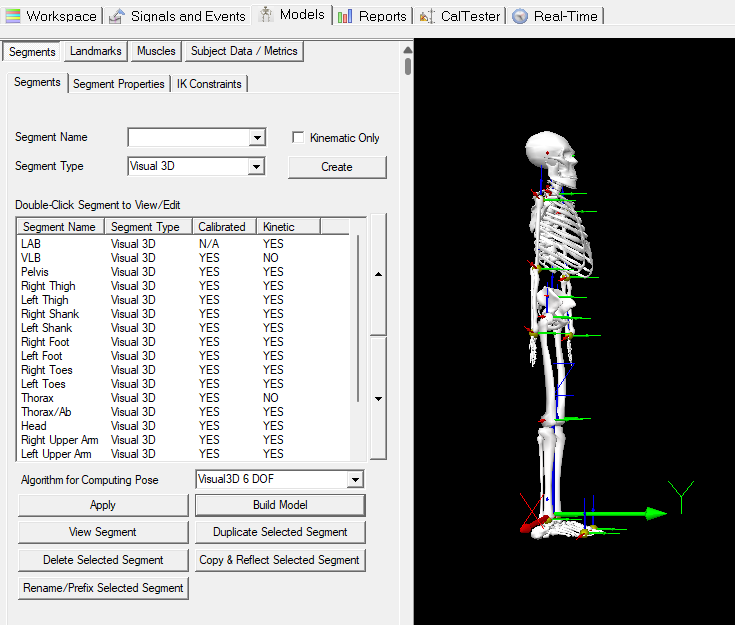
Theia `.c3d` files integrate directly into Visual3D through an automatic model template. This removes the need to manually define a biomechanical model from static trial landmarks, simplifying and speeding up the analysis workflow. The same model template is applied to all individuals’ `.c3d` files. However, the resulting model remains **subject-specific**, as segment lengths and scaling parameters are derived from the model generated by **Theia3D** and stored in the `.c3d` file.
{% hint style="info" %}
Note that the **Mass** and **Height** values shown in the *Subject Data / Metrics* tab in Visual3D are **default Visual3D values** and are **not imported from Theia**.
{% endhint %}
#### Automatic Signals
When the automatic Visual3D model is applied, several useful signals are created automatically. These signals mainly fall into two categories: **LANDMARK** and **KINETIC\_KINEMATIC**.
**LANDMARK signals** include two anatomical points: **L\_HEEL** and **R\_HEEL**. These heel landmarks are commonly used for **gait event detection**, such as identifying **heel-strike events**.
The model also generates multiple [**KINETIC\_KINEMATIC signals**](https://wiki.has-motion.com/doku.php?id=visual3d:documentation:visual3d_signal_types:kinetic_kinematic_data_type) for each body segment. These signals are organized into folders for each segments. The [segment default names can be found here](https://wiki.has-motion.com/doku.php?id=visual3d:documentation:modeling:segments:segment_default_names) or are listed below:
**RFT** = Right Foot\
**LFT** = Left Foot\
**RSK** = Right Shank\
**LSK** = Left Shank\
**RTH** = Right Thigh\
**LTH** = Left Thigh\
**RPV** = Pelvis\
**RTK** = Trunk\
**RTA** = Thorax/Ab\
**RAR** = Right Arm\
**LAR** = Left Arm\
**RFA** = Right Forearm\
**LFA** = Left Forearm\
**RHA** = Right Hand\
**LHA** = Left Hand\
**PAT** = Patella\
**RKA** = Right KAD\
**LKA** = Left KAD\
**RMF** = Right Virtual Foot\
**LMF** = Left Virtual Foot\
**RHE** = Head
These automatically generated signals provide a useful starting point for analyzing biomechanical data from **Theia `.c3d` files**. For all other processing tasks usually undertaken in Visual3D such as event generation, link-model-based calculations, and signal exporting, these can be easily accomplished using Visual3D’s powerful and flexible [Pipeline Workshop](https://wiki.has-motion.com/doku.php?id=visual3d:documentation:pipeline:pipeline_overview).
For more detailed information please visit our [Working with Theia3D Data in Visual3D Blog Post](https://www.theiamarkerless.com/blog/working-with-theia-markerless-data-in-visual3d)
### Post-Processing Theia3D Data for New Visual3D Users
A very brief summary of some of Visual3D’s capabilities include:
* Automated data processing using [pipeline commands](https://wiki.has-motion.com/doku.php?id=visual3d:documentation:pipeline:pipeline_overview)
* Use [pipeline parameters](https://wiki.has-motion.com/doku.php?id=visual3d:documentation:pipeline:general_information:pipeline_parameters) to store variable strings for use in combination with pipeline commands
* Efficient organization of related .c3d files using [workspaces](https://wiki.has-motion.com/doku.php?id=visual3d:getting_started:workspace), including [tags](https://wiki.has-motion.com/doku.php?id=visual3d:documentation:definitions:tag) to group trials
* Flexible [event creation](https://wiki.has-motion.com/doku.php?id=visual3d:documentation:c3d_signal_types:event_label_data_type), to identify specific moments within a movement
* Wide-ranging [model-based calculations](https://wiki.has-motion.com/doku.php?id=visual3d:documentation:visual3d_signal_types:link_model_based_data_type), [metric calculations](https://wiki.has-motion.com/doku.php?id=visual3d:documentation:visual3d_signal_types:metric_data_type), and [mathematical expressions](https://wiki.has-motion.com/doku.php?id=visual3d:documentation:pipeline:expressions:expressions_overview)
* Quick [exporting](https://wiki.has-motion.com/doku.php?id=visual3d:documentation:pipeline:file_commands:file_save_and_export_commands)[ ](https://www.c-motion.com/v3dwiki/index.php?title=Export_Data_To_ASCII_File)functionality
A few steps when post processing in Visual3D will include:
[**Open Files**](https://wiki.has-motion.com/doku.php?id=visual3d:documentation:pipeline:file_commands:file_open)
* Open the `.c3d` files in Visual3D.
[**Assign Tags**](https://wiki.has-motion.com/doku.php?id=visual3d:documentation:pipeline:file_commands:assign_tags_to_file)
* Assign the appropriate tags to the files.
[**Create Events**](https://wiki.has-motion.com/doku.php?id=visual3d:documentation:c3d_signal_types:event_label_data_type)
* Create the events required for the movement being analyzed.
[**Compute Signals**](https://wiki.has-motion.com/doku.php?id=visual3d:documentation:pipeline:model_based_data_commands:compute_model_based_data)
* Compute the relevant biomechanical signals.
[**Compute Metrics**](https://wiki.has-motion.com/doku.php?id=visual3d:documentation:visual3d_signal_types:metric_data_type)
* Calculate the metrics based on the computed signals.
[**Save Workspace**](https://wiki.has-motion.com/doku.php?id=visual3d:documentation:pipeline:file_commands:file_save_as)
* Save the workspace to preserve the processed pipeline.
**Export Signals and Metrics**
* [*Export\_Data\_To\_ASCII\_File*](https://wiki.has-motion.com/doku.php?id=visual3d:documentation:pipeline:file_commands:export_data_to_ascii_file) or the [*Export\_Data\_To\_Matfile*](https://wiki.has-motion.com/doku.php?id=visual3d:documentation:third-party:matlab:matlab\&s\[]=export\&s\[]=data\&s\[]=matfile#export_data_to_matfile) pipeline commands can be used to providing the signals or metrics you wish to export
For a more detailed version please visit our [Post-Processing Theia3D Data for New Visual3D Users Blog post ](https://www.theiamarkerless.com/blog/post-processing-theia3d-data-for-new-visual3d-users)
### Integrating External Devices With Theia3D Kinematics
When it comes to integrating external devices with markerless kinematics, only camera systems that support synchronization of external devices can be used to integrate such signals (e.g. [Qualisys Miqus](https://www.blog.theiamarkerless.ca/post/camera-review-part-2-qualisys), [Vicon Vue/FLIR Blackfly S](https://www.blog.theiamarkerless.ca/post/camera-review-part-3-vicon)). It’s also important to note that Theia3D itself does not handle the .c3d files from external devices - all integration of these signals with markerless kinematics is performed as a post-processing step in Visual3D.
Signals from external devices such as force plates, instrumented treadmills, or EMG systems can be integrated with Theia3D markerless kinematics during post-processing in Visual3D using the [Manage\_Theia3D\_Merge](https://has-motion.com/wiki/doku.php?id=visual3d:tutorials:theia:theia3d_merge\&s\[]=theia#manage_theia3d_merge) / [Manage\_File\_Merge](https://has-motion.com/wiki/doku.php?id=visual3d:documentation:pipeline:pipeline_commands:manage_file_merge) command or through the [Import\_Signals\_From\_C3D\_File](https://has-motion.com/wiki/doku.php?id=visual3d:documentation:pipeline:file_commands:file_open_and_import_commands) pipeline command.\
\
More information regarding this can be found in our blog post[ Integrating External Devices With Theia3D Kinematics](https://www.theiamarkerless.com/blog/integrating-external-devices-with-theia3d-kinematics)
---
# Agent Instructions
This documentation is published with GitBook. GitBook is the documentation platform designed so that both humans and AI agents can read, navigate, and reason over technical content effectively. Learn more at gitbook.com.
## Querying This Documentation
If you need additional information that is not directly available in this page, you can query the documentation by asking a question.
Perform an HTTP GET request on the following URL with the `ask` and `goal` query parameters:
```
GET https://docs.theiamarkerless.com/theia3d-documentation/visual3d-and-theia.md?ask=&goal=
```
`ask` is the immediate question: it should be specific, self-contained, and written in natural language.
`goal` is what the user is ultimately trying to achieve, the reason they need the answer. Sharing it helps GitBook give you a better, more relevant answer. A goal is most helpful when it describes the outcome the user wants rather than restating the question. For example, with `ask=how do I create an API token`, a goal like `automate deployments from our CI pipeline` lets GitBook tailor the answer to that use case.
The response will contain a direct answer to the question and relevant excerpts and sources from the documentation.
Use this mechanism when the answer is not explicitly present in the current page, you need clarification or additional context, or you want to retrieve related documentation sections.